

A slow website isn’t always caused by a slow server. Network latency measures how long data packets take to travel between a source and destination, while response time also includes server processing and transferring the response. Website latency monitoring helps distinguish these signals and show where delays are building.
Focusing on one average response time can hide an important distinction: the network path may be slow while the application is healthy, or the network may be responsive while server processing takes too long. Tracking both gives you a clearer starting point for investigation.
This guide explains how scheduled checks measure latency and response times, which infrastructure signals provide context, and how to filter results by service, version, and interval. You’ll learn how to set useful thresholds, choose monitoring locations that reflect your users, and interpret patterns without treating every slow request as the same problem.
Key Takeaways
- Separate network delay from server processing and response transfer to narrow down where a slowdown begins.
- Use percentiles alongside averages to spot slow requests that a single summary metric can hide.
- Choose check locations and schedules that reflect how people reach your site, not just where it’s hosted.
- Filter results by service, software version, and time interval to connect performance changes with specific deployments or components.
- Compare monitoring tools by the signals they measure and the workflows they support, including uptime checks, API checks, and status pages.
Uptime, response time, and infrastructure checks
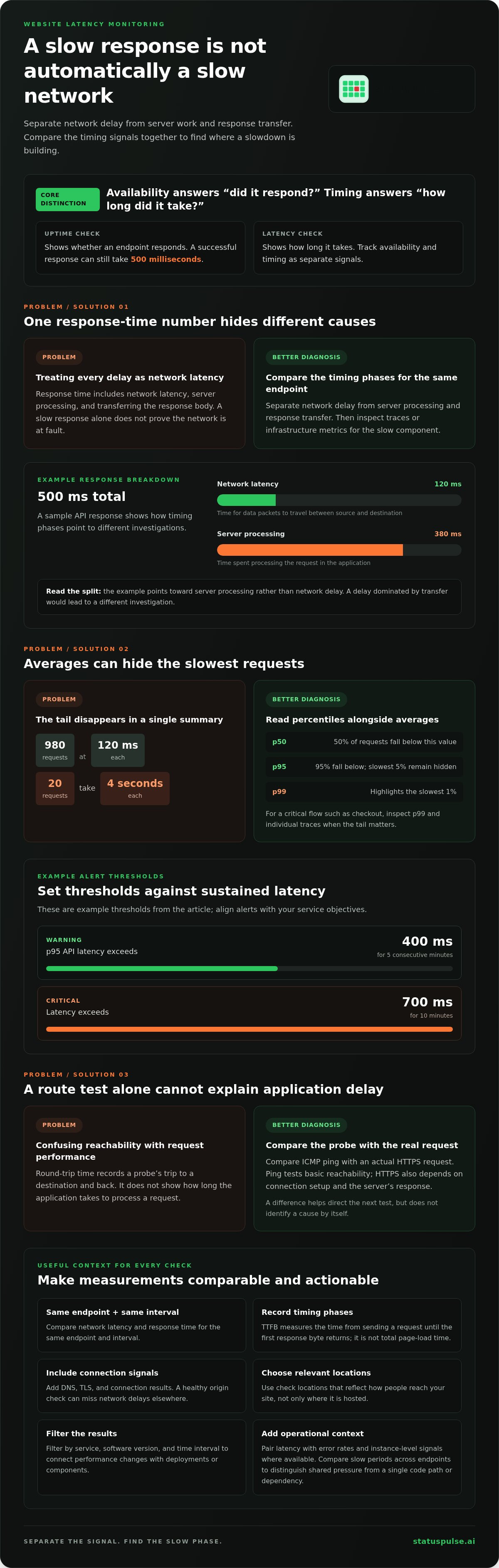
Uptime checks show whether an endpoint responds; latency checks show how long it takes. For example, a successful response can still take 500 milliseconds, so track availability and timing as separate signals.
Latency and Response-Time Definitions
Network latency is the time data packets take to travel from source to destination. Response time includes more: network latency, server processing, and transferring the response body. A slow response doesn’t prove the network is at fault. Compare both measurements for the same endpoint and interval to narrow down the cause.
Timing phases matter, too. Time to first byte (TTFB) measures the time from sending a request until the first response byte returns. Interpret TTFB alongside other timing phases rather than as a complete breakdown. Record those phases separately when your monitoring supports them, rather than treating TTFB as total page-load time.
Server Processing and Response Transfer
Server processing begins after a request reaches the application. Code execution, database queries, and resource contention can extend this phase. Response transfer begins as the server sends data back; a larger response body can take longer to deliver than a smaller one. Compare endpoints with different payload sizes to see whether slowdowns track server processing or transfer time.
A 500-millisecond API response can include 120 milliseconds of network latency and 380 milliseconds of server processing. That breakdown points toward different investigations than a delay dominated by transfer. Check the timing phases together, then inspect application traces or infrastructure metrics for the slow component.
Common Response-Time Scenarios
Compare percentiles, not only averages. p50 is the value below which 50 percent of requests fall; p95 covers 95 percent, while p99 highlights the slowest one percent. A p95 view still hides the slowest five percent. If those requests affect checkout or another critical flow, inspect p99 and individual traces.
For example, 980 API requests can complete in 120 milliseconds while 20 take four seconds. An average can obscure that tail. A warning threshold could trigger when p95 API latency exceeds 400 milliseconds for five consecutive minutes. A critical alert could trigger above 700 milliseconds for ten minutes. Treat these as example thresholds, then align alerts with your service objectives.
For Google App Engine, track response latency by service and endpoint, then compare slow periods with application and infrastructure signals. Rising latency across multiple endpoints can suggest shared infrastructure pressure; a single slow endpoint points toward its code path or dependencies. Pair latency with error rates and instance-level signals where available, so timing changes have operational context.
Keep uptime checks separate from performance diagnosis. A status code confirms what the endpoint returned; latency records how long the response took. Add DNS, TLS, and connection results to the check, and compare locations that reflect your users. A healthy origin check can miss network delays elsewhere.
What is network latency?
To diagnose a slowdown, compare the request path, the client’s network, and application timings. A repeatable test from a known endpoint makes the results easier to interpret.
Network Latency and Round-Trip Time
Round-trip time (RTT) records how long a probe takes to reach a destination and return. It’s useful for comparing routes, but doesn’t show how long the application takes to process a request. Record the destination and probe method with each result; otherwise, two RTT readings may describe different paths or protocols.
For example, compare an ICMP ping with the timing of an actual HTTPS request. The ping tests basic reachability, while HTTPS also depends on connection setup and the server’s response. Differences between the results help direct the next test, but don’t identify a cause by themselves.
Network Versus Application Slowdowns
Run a request while collecting both client-side timings and an application trace. If the trace shows little server work but the client is still waiting, inspect the connection and dependencies outside that code path. If the trace identifies a slow database call or function, focus on that operation rather than changing network settings.
Repeat the same request with the same payload and credentials. Compare a normal request with a slow one, including status, response size, and trace spans. This controlled comparison can reveal a dependency that slows a particular route without confusing request variation with a network fault.
Network Path and Hop-Level Troubleshooting
Use traceroute on macOS or Linux, or tracert on Windows, to inspect intermediate hops. Run it toward the affected hostname and save the output with the incident timestamp. Compare repeated traces for route changes or a point where probes stop returning useful responses.
Don’t treat one slow hop as proof of a fault. Routers may deprioritize diagnostic traffic while forwarding application traffic normally. Confirm a suspected path issue with repeated tests and an application-level request. If only one protocol appears affected, compare its route and connection behavior before drawing conclusions.
Testing Latency on a Local Network
Test the default gateway first with ping, then test the service hostname. If gateway probes show packet loss or irregular timing, repeat the test using wired Ethernet instead of Wi-Fi. This helps isolate wireless conditions from issues beyond the local network.
If both devices show the same problem, compare another client and inspect router load. Note whether a VPN, proxy, or security agent is active, then repeat without changing other variables. This gives the team a useful baseline before investigating upstream routing or application behavior.
During a service disruption, a public status page gives teams a place to share updates and service state.
Measurement versus continuous monitoring
A diagnostic measurement answers a narrow question at a specific moment. A monitoring program adds history, context, and a repeatable basis for action.
Latency Measurement Methods
A manual test is useful during an investigation because an engineer can control the request and repeat it after a change. Record the command, destination, timestamp, and result so another engineer can reproduce the test. A single reading is evidence about that run, not a trend.
Kernel timer measurements help investigate scheduling delays inside a host. Compare them with application traces from the same period to see whether delayed task execution coincides with slow requests. This is a host-level diagnostic, not a substitute for external checks. Keep the measurement focused on the question under investigation.
Continuous Monitoring Compared With Measurement
Continuous monitoring runs checks on a schedule and retains the results. That history helps establish normal variation, identify recurring windows, and assess whether a change persists after deployment. A one-off measurement can test a hypothesis, but it can’t show whether the same condition appeared earlier or returned later.
Choose a cadence based on how quickly the team needs to detect a change and how much monitoring activity the endpoint can tolerate. Frequent checks produce more observations, but may increase alert noise and probe traffic. Review alert history after incidents, then tune the schedule and conditions so notifications lead to a clear investigation.
Synthetic and Real User Monitoring
Synthetic monitoring runs a controlled script or request, making repeated comparisons easier. Real user monitoring (RUM) collects performance data from actual sessions and can reveal combinations of browser, device, and page behavior that a scripted test misses. Use synthetic checks for consistent baselines and RUM to understand variation in real interactions.
Neither method explains every cause. A synthetic test can isolate a repeatable flow, while RUM can reveal that only a specific browser journey is affected. Compare their findings before changing the test or application. Differences may reflect distinct requests and conditions, not conflicting measurements.
Check Frequency and Locations
Set a cadence that matches the service’s detection objective. Keep the schedule consistent during comparisons, and note any interval changes. Select monitoring locations that represent important user populations, then keep those vantage points stable across periods. This makes changes in the results easier to interpret.
For example, if a team wants to catch short-lived incidents, it should schedule checks close enough together to detect them. For broader trend analysis, retain results across comparable operating periods. Review both missed incidents and noisy alerts; adjust the cadence or locations when the evidence shows the current setup isn’t serving its purpose.
Filtering latency by service, version, and interval
A single latency graph can hide which component changed. Filter metrics by service, release, and time interval to turn an overall symptom into a focused investigation.
Start With the Service
Separate measurements by service or endpoint before comparing results. A report-generation workflow might depend on document storage, a rendering worker, and an export endpoint. If the workflow slows, filter its component metrics to find which service changed. Keep endpoint names consistent across dashboards, traces, and deployment records.
Group by function when endpoint-level detail creates too much noise. For example, compare authentication, catalogue, and payment services, then investigate the slow group. This shows whether delays affect one dependency or several parts of the application. Preserve individual endpoint data for follow-up.
Compare Versions Carefully
Attach a release identifier to each measurement, then compare the same service before and after deployment. If one version shows higher response times while other services remain steady, inspect its code path, database calls, and dependencies. A version filter helps distinguish a deployment-linked regression from a broader infrastructure change.
Keep the comparison fair. Use the same endpoint, monitoring location, request type, and interval for each version. Changes in payload size or traffic mix can alter response time without a code regression. Record those differences alongside the metrics, so a graph doesn’t imply causation on its own.
Choose an Interval That Answers a Question
Use a short interval to inspect when an incident began, then widen the view to understand its duration and recurrence. For example, compare a narrow period around a deployment with the surrounding trend. Short windows reveal bursts; wider windows show whether a change persists or follows a regular pattern.
Compare equivalent intervals across services and releases. Don’t compare a low-traffic period with a busy one and treat the difference as a code effect. Include request volume and error rate when available. These metrics help explain whether slower responses coincide with load, failures, or a changed connection path.
Build a Useful Filter Sequence
Start with the affected endpoint, then select the relevant version and interval. Next, compare locations or network paths if the pattern differs by region. Finally, check related services and dependencies. This sequence moves from the user-visible symptom toward likely causes without mixing unrelated traffic.
For a slow report export, isolate the export endpoint and affected release first. Then compare storage retrieval, document rendering, and file delivery over the same window. If rendering stands out, inspect its metrics and dependencies. If every stage shifts together, investigate a shared infrastructure or network change.
Keep filters visible in incident notes and dashboards. A graph labeled only “latency” loses value if teams can’t identify its service, version, location, and interval. Clear dimensions make comparisons repeatable and help responders share findings without rebuilding the same query.
What are the best website latency monitoring tools in 2026?
The right tool depends on the question you need answered. Choose based on measurement scope, regional coverage, alerting, and how easily results connect to service changes.
For a practical shortlist, compare tool types rather than feature counts. A focused uptime checker, an API monitor, and an application performance platform solve different problems. Some teams need one view; others need specialized tools for network paths, browser sessions, and application traces.
Match the Tool to the Investigation
- Uptime monitoring: Checks whether an endpoint responds and records availability. Use it to detect reachability failures, then pair it with timing data for slow-but-successful responses.
- API monitoring: Tests endpoints and, where supported, request behavior. It suits teams tracking service interfaces or critical transactions.
- Application performance monitoring: Connects response delays with code execution, database calls, and dependencies. Choose it when external checks show slowness but don’t reveal the internal cause.
- Network diagnostics: Measures paths and connections between locations. Use it when latency differs by region or network route.
- Real user monitoring: Captures performance from actual visits. It helps explain differences across devices, browsers, and user networks.
Where StatusPulse Fits
StatusPulse is an option for teams that need Uptime Monitoring, API Monitoring, and SSL Certificate Monitoring in their service visibility workflow. These checks help teams track endpoint availability, API behavior, and certificate status. They address operational monitoring needs, while deep code-level diagnosis requires application tracing or infrastructure telemetry.
For example, an API check can show that an endpoint’s response has changed. Traces or server metrics can then help locate slow processing or a dependency. Keep these roles clear when assessing tools. A monitoring platform isn’t a substitute for every diagnostic layer.
Evaluate Before Standardizing
Run the same endpoint and request through each candidate tool. Compare its reported timing, failure details, monitoring locations, and alert context. Then test a real incident scenario: can the team distinguish a failed connection from a slow application response?
Check how results can be filtered by service, version, and interval. That makes deployment comparisons more useful than a single aggregate graph. Review retention and export options against your investigation workflow. Don’t choose based on dashboard appearance alone.
If your immediate need is availability, API, or certificate checks, explore StatusPulse monitoring options. For request traces, detailed infrastructure telemetry, or real-user browser data, include the relevant specialist tooling in your evaluation.
StatusPulse: Public Status Pages
StatusPulse provides Public Status Pages for sharing service state during disruptions. Pairing a public page with Uptime Monitoring, API Monitoring, and SSL Certificate Monitoring gives teams signals about availability, endpoint behavior, and certificate status. These checks can help identify an issue to communicate, while a status page gives users a clear place to see updates. It doesn’t diagnose the underlying cause of high latency, so retain application traces and infrastructure metrics for technical investigation.
Use a public status page when an incident affects users and a shared update can reduce uncertainty. Keep messages factual: name the affected service, describe the known impact, and update the status as the investigation progresses. Visit StatusPulse’s website to learn more about its Public Status Pages.
Turn monitoring data into an operating practice
Make performance review part of routine service ownership. Assign someone to assess unusual latency patterns, record relevant deployments or infrastructure changes, and decide when an investigation becomes an incident. This gives engineers a shared process instead of a dashboard that gets attention only during outages.
Keep the process useful by reviewing whether each alert led to clear action. Remove signals that create noise, clarify ownership when alerts go unanswered, and update the runbook when investigations uncover a recurring cause. As your architecture changes, revisit which endpoints and user journeys matter most. Website latency monitoring works best when its measurements inform decisions, not just reports.
If you’re planning how to connect monitoring with incident communication, contact StatusPulse about monitoring. Start with the services your team needs to observe and the information users need during disruption. A clear operating practice helps turn performance signals into steady, informed action.
Frequently Asked Questions
How does your site perform in Tokyo?
To find out, run a scheduled check from Tokyo and review its latency, response time, and failure history. Results from another region can’t describe the route Tokyo users take. Compare the same endpoint and request from Tokyo and your other key locations. If only the Tokyo result degrades, investigate regional routing, DNS resolution, or CDN delivery before changing application code.
What is response time?
Response time is the elapsed time between sending a request and receiving the complete response. It reflects more than network travel: server processing and transferring the response body also contribute. For example, a small health-check response and a large API payload can have different response times, even when they use the same service. Compare equivalent requests to identify a meaningful performance change.
Why test globally?
Global checks reveal whether users in different regions encounter different network paths or service behavior. A check near your origin may pass while a distant location experiences timeouts or slow responses. Compare the same endpoint from locations that match your user base, then investigate regional outliers separately. This helps distinguish a localized connectivity issue from a service-wide slowdown.
How is website latency measured, including TTFB and response time?
Measure elapsed time across the request journey and keep each timing phase distinct. TTFB records the time from sending a request until the first response byte returns, excluding DNS, connection, and TLS phases. Total response time continues until the response body finishes transferring. Recording both helps show whether a delay occurs before the first byte or during the remaining response.
How do I set up website latency monitoring and alerts?
Start with a critical endpoint, a representative request, and locations where users access it. Schedule checks, record response-time percentiles, and alert on sustained changes rather than one slow sample. For example, use a warning when p95 API latency exceeds 400 milliseconds for five consecutive minutes, and a critical alert above 700 milliseconds for ten minutes. Route alerts to the team responsible for that service.
What latency thresholds are acceptable for websites?
Set thresholds around the endpoint’s purpose and user impact, not one universal target. As an example objective, public endpoints can target p95 latency below 400 milliseconds, while transactional APIs can target p99 below 800 milliseconds. Compare results against your own baseline and service objectives. A useful alert should identify a sustained change that warrants action, not ordinary variation between requests.
How do CDN, DNS, hosting, and network issues affect website latency?
DNS adds time while a client resolves a hostname; a slow or failing lookup delays the request before it reaches the service. Network distance and routing affect packet travel, while packet loss can add delays. Hosting resources influence server processing. A CDN can serve content closer to users, but regional results still matter: compare CDN-served responses with origin behavior to locate where delays occur.


