

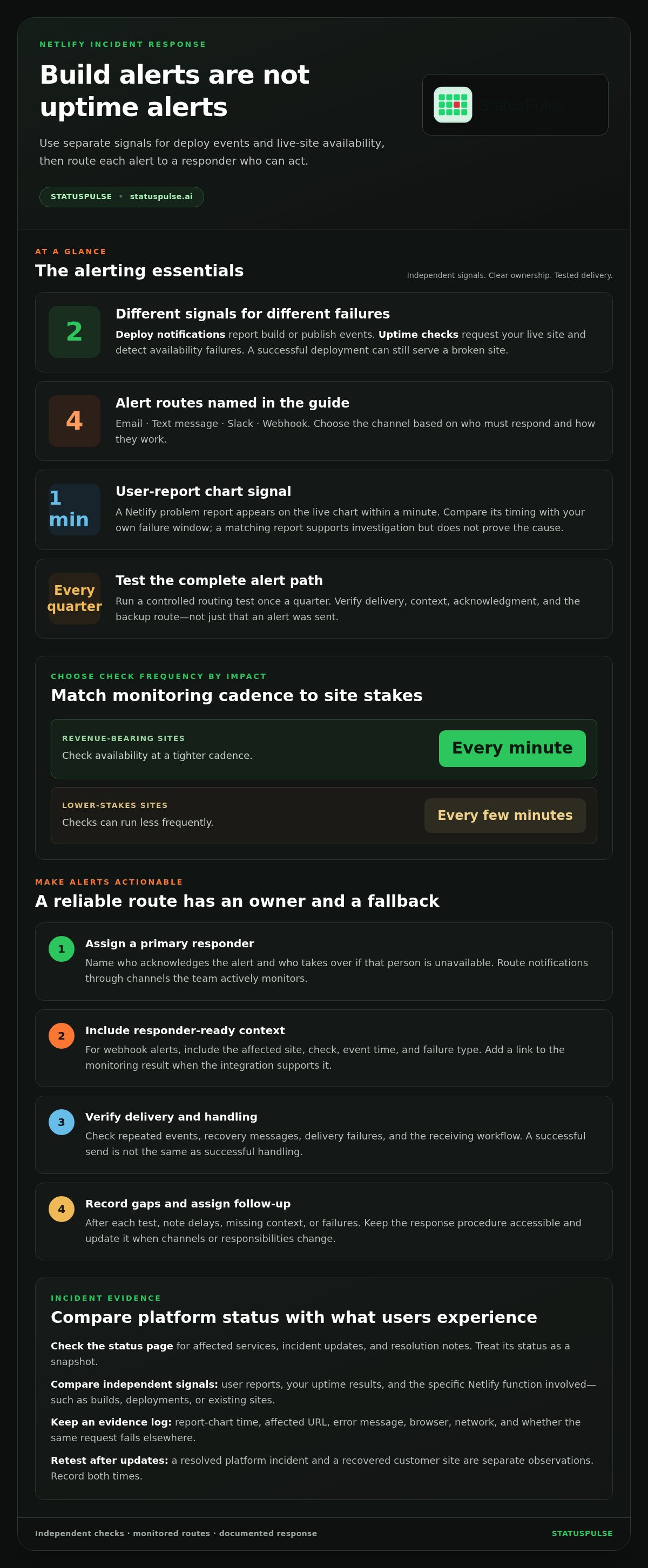
A green Netlify status page doesn’t prove your site is reachable. Set up Netlify site down alerts by pairing incident notifications sent to email or text with uptime checks on your own site. Revenue-bearing sites should be checked every minute; lower-stakes sites can be checked every few minutes.
Alerts only help if they reach someone who can act. A notification sent to an unwatched inbox at 3 a.m. may go unnoticed, so choose channels your team monitors and test the alert route regularly.
This guide walks through setting up notifications, checking Netlify outage reports, and monitoring the components that can affect a deployed site. You’ll also learn how to tell a Netlify platform incident from a site-specific problem, and what to check when your site stops responding. Clear signals and a tested response path make outages easier to investigate, without relying on a single status page.
Key Takeaways
- Route incident notifications through channels your team actively monitors, and test the full alert path so messages reach the right responders.
- Compare user reports with Netlify’s status information to distinguish a broader platform incident from a problem limited to your site.
- Check the affected parts of your deployment, including builds, DNS, SSL certificates, and APIs, to narrow down where the failure begins.
- Use a consistent troubleshooting sequence: verify the error, inspect recent changes and deployment logs, then retest the site from outside your network.
- Consider uptime monitoring and a public status page when you need independent checks and a clear way to keep users informed during disruptions.
Email, text message, Slack, and webhook incident alerts
- Separate deploy notifications from uptime alerts. Netlify deploy notifications report build or deployment events, such as a failed publish. Uptime alerts come from checks that request your live site and detect availability failures. A successful deployment can still serve a broken site, so use both signals for different failure modes.
- Check Netlify’s status page for platform incidents. It reports service status and provides incident information and updates. At the time of the latest status-page check, Netlify was reported as up. Treat that as a snapshot, then review incident history for affected services, reported impact, and resolution updates.
- Choose an alert channel with a clear owner. Email creates a searchable record, while text messages can reach an on-call phone. Slack works well when responders watch the relevant channel. A webhook can pass events into an existing incident workflow. Match the channel to who must act and how they respond.
- Route alerts beyond one inbox. An alert sent to an unwatched inbox at 3 a.m. may notify nobody. Set a primary recipient and a backup route, such as a team channel or on-call phone. Name the person responsible for acknowledging the alert, then document who takes over if they’re unavailable.
- Make webhook alerts useful to responders. Send enough context to identify the affected site, check, event time, and failure type. Include a link to the relevant monitoring result when your integration supports it. Test how the receiving system handles repeated events, recovery messages, and delivery failures before relying on automation.
- Assess severity from impact, not labels alone. Compare the incident’s affected Netlify component with your site’s actual behavior. A build-service issue matters differently when existing deploys remain available than when publishing is essential. Record customer-facing symptoms, scope, and start time; use those details to prioritize response and communicate status.
- Review incident updates and test your alert path. During an incident, compare Netlify’s latest status update with your own uptime results. After resolution, record when your site recovered and whether alerts arrived through the expected channels. Test routing once a quarter, including email, text, Slack, or webhook paths your responders rely on.
Teams should test their alert routing once a quarter, using a controlled event that lets responders verify the complete path without confusing it with a live outage. Confirm that the message identifies the affected site and failure type, reaches the intended recipient, and prompts an acknowledgment. Check that the backup route works if the primary recipient does not respond. For a webhook, inspect the receiving workflow as well as the alert itself, so a successful send is not mistaken for successful handling.
After each exercise, record delays, missing context, or delivery failures and assign an owner to address them. Make recovery messages easy to distinguish from new failures, and ensure someone taking over can understand what happened without relying on private knowledge. Keep the procedure accessible and update it when responsibilities or channels change. A test is useful only if it verifies the route responders will actually use and exposes gaps before a customer-facing incident.
Recent user reports and outage trends
- Open the live report chart and note its update time. A Netlify problem report appears on the live chart within a minute. Compare its timing with your own failure window. Record the timestamp, affected URL, and observed error. A report that appears near your first failed request can support a platform-side investigation, but it doesn’t prove the cause.
- Look for independent reports with matching symptoms. A single user report may point to a local network, browser, or site-specific problem. Compare reports for shared details, such as failed deploy previews, inaccessible dashboards, or unavailable production sites. Similar symptoms provide more diagnostic value than unrelated complaints. Keep the wording and timestamps to compare reports accurately.
- Separate report volume from incident severity. More reports can indicate a broader disruption, but volume alone doesn’t show which Netlify functions are affected. Check whether reports concern builds, deployments, or existing sites. For example, a failed build may block a new release while an existing deployment still loads. Prioritize the impact users actually experience.
- Compare the current chart with incident history. Review past entries for affected components, start times, update frequency, and resolution notes. Look for repeated symptoms, not just dates. If several entries describe the same function failing, note the pattern in your incident record. Don’t call it a recurring outage unless the historical reports support that conclusion.
- Track changes across each incident update. Record when Netlify changes an incident’s status, adds affected components, or reports a resolution. Then test the specific function users reported, such as opening the site or publishing a deployment. A resolved platform incident and a recovered customer site are separate observations. Keep both timestamps to identify any remaining site-level fault.
- Use a short evidence log before escalating internally. Record the report-chart time, affected URL, error message, browser, network, and whether the same request fails elsewhere. For example, compare a failed request on a corporate network with one on a mobile connection. These details help distinguish a shared Netlify issue from a local DNS, cache, or configuration problem. A report alone doesn’t prove an outage.
Monitoring Netlify components
- Start with the public site, not the dashboard. Configure an external HTTP check against your production hostname. Revenue-bearing Netlify sites should be checked every minute. Lower-stakes sites can be checked every few minutes. Set the interval according to the impact of missed requests and the response time your team can sustain.
- Check the custom domain and HTTPS separately. Create checks for the exact hostname visitors use, whether www or apex. Request the page over HTTPS, then verify its response and expected content. This can catch cases where a Netlify subdomain works but the custom domain or certificate path fails.
- Monitor more than the homepage. A homepage can load while a key function fails. Add checks for a representative route, such as a login page, product endpoint, or search request. If the route depends on an API, monitor that API separately. Compare results to identify whether the fault affects delivery, application behavior, or a dependency.
- Watch certificate expiry as its own signal. An SSL certificate expiry warning can give your team notice before the certificate expires. Treat that warning differently from an active HTTPS failure. Record the certificate’s hostname and expiry date, then assign someone to investigate renewal before browsers begin rejecting connections.
- Choose an independent monitor that fits Netlify sites. An uptime service is useful when it can request your custom domain over HTTPS, validate an expected response, and route alerts to channels your team uses. Check support for the request method, content match, interval, and alert destinations you need. Choose based on those requirements, not a vendor name alone.
- Set thresholds around real failures. A single failed request may result from a transient network issue, while repeated failures suggest a persistent outage. Configure the monitor to report both failure and recovery, and include the tested URL. Don’t treat a slow response as downtime unless the threshold reflects your site’s requirements.
- Keep component results distinct. Label checks by hostname and function, such as production homepage, checkout API, and certificate status. If the homepage fails while the API responds, responders can narrow down the fault quickly. Review labels when deployment changes so renamed routes or retired endpoints don’t create misleading alerts.
Set aside time to cover the main Netlify monitoring checks. Confirm that each check reaches the intended hostname, returns expected content, and sends a useful alert to the people responsible for responding. Where practical, trigger a controlled failure and verify that recovery is reported just as clearly. A check that runs but can’t be acted on adds little operational value.
Keep a concise record of what each signal means, who owns it, and what first step follows an alert. Revisit the setup whenever a route, domain, API dependency, or deployment process changes. This keeps monitoring aligned with the live service and helps responders distinguish a genuine delivery problem from an outdated check. Separate warnings, slow responses, and confirmed failures so alerts remain actionable rather than becoming background noise.
Steps to take when Netlify is not working
- Compare the monitor’s target with the failing page. If monitoring says the site is up, check whether it requested the same hostname, route, and expected content that users report failing. A successful homepage check won’t detect a broken checkout route or missing page content. Test the exact URL and note the response.
- Reproduce the failure outside the affected browser. Open the URL in a private window, then request it with curl using the same hostname. Compare the response headers and body with the browser error. If only one browser session fails, inspect its cached assets, extensions, and console errors before changing the Netlify deployment.
- Check the latest Netlify deploy before changing configuration. Review the deploy’s publish result, commit, and build output. Look for missing files, a failed build command, or an unexpected publish directory. If the error began immediately after a release, compare the affected files with those in the last working deploy.
- Inspect redirects and route handling. A site can serve its homepage while a nested route returns an error. Test a direct request to the failing path, such as /account or /products/item. Review the Netlify redirects configuration and application fallback behavior for rules that could send requests to the wrong destination.
- Check serverless functions and external dependencies. If static pages load but a form or search action fails, inspect the related function logs and response. Confirm that required environment variables exist in the deployed context. For an API-backed feature, test the API independently and compare its result with the site’s browser request.
- Verify HTTPS and asset delivery on the affected hostname. Inspect the browser’s security details, then load a stylesheet and script directly. A page may return HTML while a certificate issue or failed asset request breaks its visible functions. Compare the hostname in the certificate with the custom domain visitors actually use.
- Choose rollback only when the deploy caused the regression. Compare the first failing request with the deployment timeline and relevant code changes. If the previous deploy served the same route correctly, restoring it can limit user impact while you investigate. Record the change and preserve build logs for follow-up.
- Keep an incident record as you test. Note the affected URL, time observed, response, deploy identifier, and checks performed. For example, record that the homepage loads but the account route fails after a specific release. This evidence helps distinguish a platform issue from a site configuration or application fault.
How can I set up uptime monitoring and downtime alerts for a Netlify site?
- Create a monitor for a production URL. Use the hostname customers enter, then give the check a clear name, such as “Netlify site down alerts: production homepage.” Keep preview deployments separate from production checks. That way, a temporary preview failure isn’t mistaken for an outage affecting visitors, and alerts are easier to identify in monitoring history.
- Define what counts as a successful response. Set the check to expect the status code and page content your site normally returns. For example, checking for your homepage title can distinguish the intended page from an error page served with a successful HTTP status. Choose a stable text marker that won’t change during routine content edits.
- Decide how redirects should be handled. If the root domain redirects to a www hostname, configure the check to follow the redirect or monitor the final destination directly. Confirm that the destination matches your intended canonical domain. A redirect loop or unexpected destination should trigger a useful failure signal, not a misleading success.
- Keep checks independent of user authentication. Use a public page or a purpose-built health endpoint. A monitor that depends on a personal login session can fail when credentials expire, even while the public site works. If a private workflow matters, create a separate check with its own access method and label it clearly.
- Choose the failure policy carefully. Configure the monitor to distinguish failed responses from recovery, and decide how repeated failures should be grouped. For Netlify site down alerts, include the check name and failing URL in the notification rule. This gives responders useful context without making them guess which site triggered it.
- Document exclusions and planned changes. Record routes that intentionally return errors, require authentication, or depend on user-specific data. If a deployment changes the expected page marker, update the check alongside the release. This prevents legitimate application changes from generating false alarms after publishing.
- Validate the check against realistic outcomes. Test the configured URL, expected content, redirect behavior, and notification policy. A useful Netlify site down alerts setup should identify a deliberate failure and recognize recovery after the test ends. Record the result in the team runbook, including the check name and who is responsible for reviewing future changes.
StatusPulse: Public Status Pages
StatusPulse brings public status communication together with monitoring for teams managing service disruptions. Its Public Status Pages provide a place to share service updates, while Uptime Monitoring checks whether a site responds. SSL Certificate Monitoring and API Monitoring add visibility into certificate validity and API availability. This can suit teams that need both an independent availability signal and a clear place to communicate incident progress.
Use these tools when Netlify’s platform status alone doesn’t show whether your custom domain, certificate, or API works for visitors. Monitoring results can help your team investigate; a public status page helps keep customers informed as the incident develops. Visit StatusPulse to explore its monitoring and status page options.
Make outage readiness part of routine operations
Make Netlify site down alerts part of a shared operating practice, not just another notification. Assign alert ownership, keep response steps close to the team’s workflow, and review whether each incident exposed a gap in monitoring or communication. A short post-incident note can capture what failed, what detected it, and what to change before the next disruption.
StatusPulse supports this workflow with Public Status Pages, Uptime Monitoring, and SSL Certificate Monitoring. Use them to connect availability signals with clear customer updates and certificate visibility. The right setup depends on what your team needs to monitor and communicate.
To discuss how these tools fit your incident process, contact StatusPulse about outage alerts. Build a response path your team can use with confidence.
Frequently Asked Questions
Looking to track Netlify downtime and outages?
Yes. Combine Netlify’s incident updates with an independent check of your public site. An external monitor can test the customer-facing hostname, while Netlify’s status information provides context about platform incidents. Treat these as separate signals: a healthy platform report doesn’t prove every visitor can reach your site, and a failed site check doesn’t identify Netlify as the cause. Compare both before deciding what to investigate.


