

Use server logs or analytics to find 404s, then monitor HTTP status codes and route meaningful failures into alerts. A 404 means a page couldn’t be found; 404 error tracking and alerts help you spot broken URLs and respond before they go unnoticed. Track 503 responses alongside 404s so you can distinguish missing pages from service disruptions.
It’s easy to assume a site crawler will catch every broken link. It won’t necessarily find URLs reached through links on other websites, and analytics can miss errors if the 404 page isn’t configured for tracking. A unique page title or a custom page-not-found event gives you a clearer signal.
This guide shows how to find 404 errors in logs and analytics, detect internal and external broken links, and configure monitoring that separates a missing page from a broader availability issue. You’ll also learn how to choose an appropriate response, reduce noisy reports, and set alerts for HTTP status changes, including 503 responses. The goal is a practical workflow: identify the failing URL, understand what the status code indicates, and decide what needs fixing.
Key Takeaways
- Use server logs, a distinctive 404 page title, or a custom page-not-found event to identify missing pages.
- Combine site crawling with other detection methods to catch broken links that point to your site from external pages.
- Configure a dedicated pageview trigger for 404s, and exclude those pages from your standard pageview trigger to keep analytics clearer.
- Check the actual HTTP response as well as the page content to catch soft 404s that return a 200 status.
- Monitor 404 and 503 responses separately so missing pages don’t get confused with service availability problems.
Finding 404 errors by page title, URL, or custom event
Start with server logs or Google Analytics 4 (GA4). A unique page title such as “404 Error” can identify not-found visits; a custom event offers a more precise signal when titles or page layouts vary.
Tracking can expose sensitive details when full URLs, referrers, or log entries contain personal information. Limit access to logs, remove sensitive query parameters before sending analytics events, and retain only the fields needed to diagnose a broken link.
- Give the not-found page a clear title. Set its document title to “404 Error” and keep it consistent across the site. In GA4, create a report or exploration filtered by page title containing “404” to find visits to that page. This method is quick to deploy, but it depends on the title being unique and on the page actually loading after a missing URL.
- Record the requested URL. Compare the page location for each not-found visit with the expected URL pattern. A path such as
/products/old-itemcan reveal a stale internal link, while a path with a misspelled slug may point to a typing error. Keep query parameters out of reports when they contain identifiers or other sensitive values. - Send a custom event through Google Tag Manager. Ask a developer to push a page-not-found event to the data layer when the server serves a genuine 404 response. Configure a Google Tag Manager trigger for that event, then send it to GA4 with useful parameters such as the requested path and referrer. A dedicated event is more robust than relying only on page title because it marks the error condition directly.
- Build an internal broken-link report. Include the requested URL and the referring page, then group results by those fields. For example, if
/guide/setuplinks to/guide/installand that destination returns a 404, the referring page points to the link that needs correction. Separate repeated visits from distinct broken destinations to keep the report actionable. - Build an external broken-link report. Capture the referrer when available and compare it with the requested URL. Group by destination and referrer to distinguish a dead external link from an outside site linking to a missing page on your domain. Referrer data can be absent, so keep the destination path as the primary report dimension.
- Prepare the custom 404 response. Configure the server to return an actual 404 status while serving helpful HTML, such as a search field and links to key sections. Google Chrome can replace a custom page shorter than 512 bytes with suggestions; Internet Explorer’s stated threshold for displaying custom pages is more than 512 bytes. Keep tracking code lightweight and ensure the page title and event both identify the error.
Automatic detection of internal and external 404 links
- Map the site before scanning. Configure a crawler to start from the homepage and follow internal links. Include important landing pages, product pages, and XML sitemap entries so orphaned sections aren’t overlooked. Set it to record each source page, destination URL, and HTTP response. That gives you a traceable path from a broken link to the page that contains it.
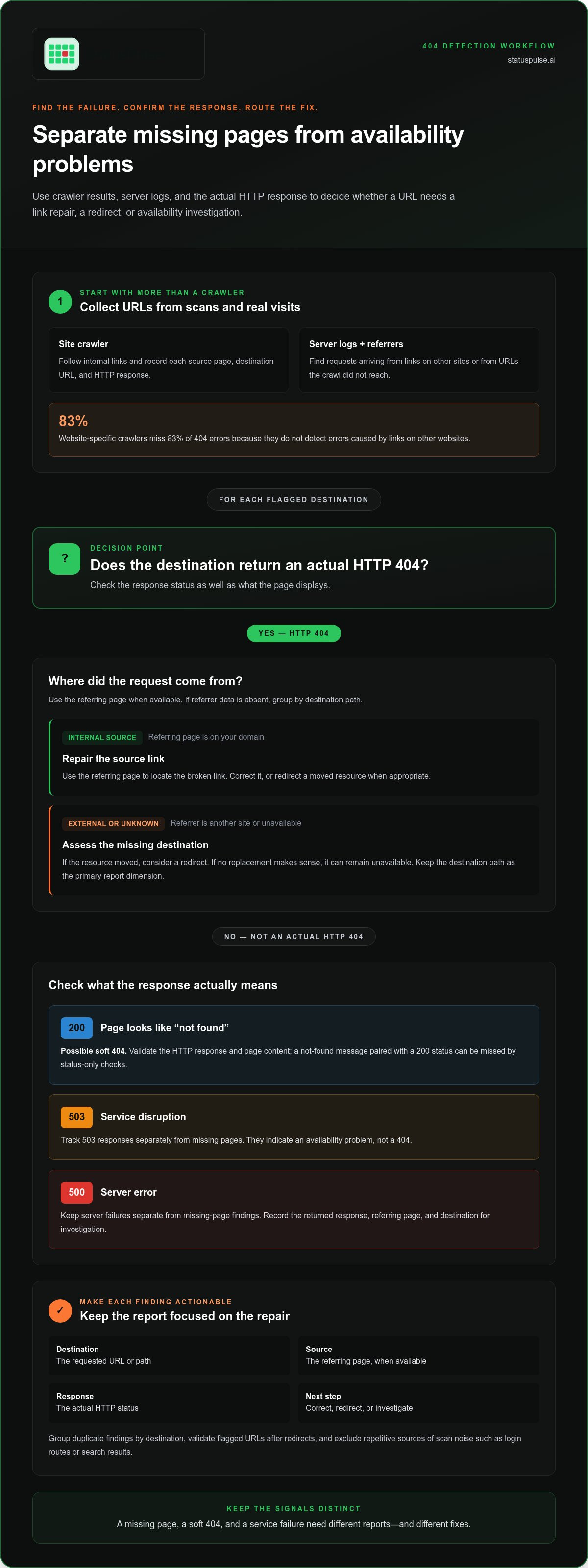
- Don’t rely on crawling alone. Website-specific crawlers miss 83% of 404 errors because they don’t detect errors caused by links on other websites. A crawler generally finds only links it can access from the pages it scans. Use server logs and available referrer data to find external visits to URLs that return “page not found,” then group those requests by destination.
- Separate internal failures from external referrals. An internal broken link has a source page on your domain; an external referral comes from another site or an unknown referrer. Build distinct report views for each case. For example, if a blog post links to a removed guide, edit the post; if an external article points to that guide, assess the destination before changing it.
- Check destinations automatically, then validate results. Have the crawler request each linked URL and record its final response after redirects. A redirect may lead to a working page, while a chain of redirects can obscure the original link problem. Recheck flagged URLs in a browser or with a direct request before assigning work, especially when access controls or temporary failures affect crawler results.
- Set useful scan boundaries. Exclude login routes, search results, and user-generated URL patterns when they create repetitive noise. Keep the default scan focused on pages visitors can reach without authentication. Add high-value sections deliberately, such as campaign landing pages that aren’t linked from the main navigation, and record exclusions so later scans use the same scope.
- Turn findings into a repair queue. Include the broken destination, referring page, response, and first-seen or last-seen scan details in each report. Group duplicate findings by destination, then prioritize links on key navigation and conversion pages. Assign a clear action: correct the source link, redirect a moved resource, or leave a removed page unavailable when no replacement makes sense.
Keep server failures separate from missing-page findings. A 500 error is a type of server error known as an Internal Server Error. It should not be classified as a 404 simply because a scan could not retrieve the destination. Record the response as returned and preserve the referring page and destination so the issue can be investigated in context.
When a URL returns this response, repeat the request and confirm the result persists before assigning a repair. If it does, route the issue for server-side investigation rather than changing the source link or redirecting the destination by default. After addressing the issue, run the check again and update the queue based on the new response. This keeps missing resources distinct from failures to serve a resource.
404 Monitoring setup
- Choose the signal you’ll monitor. Use a server-side status code when available, because it confirms the response itself. In Google Analytics 4 (GA4), a page title containing “404” can help identify not-found visits, but it depends on the error page loading and using that title. A custom event gives you a distinct analytics signal when the site has multiple error templates.
- Configure GA4 to record not-found visits. Set the 404 page title to “404 Error,” then create an event for visits where the page title contains “404.” For a stronger signal, have the site push a page-not-found event to the data layer and configure Google Tag Manager to send it to GA4. Include the requested path as an event parameter, and omit sensitive query values.
- Keep the standard pageview report clean. Exclude 404 pages from the existing pageview trigger with the condition “Page Title not contains 404.” Keep a separate error event or trigger for those visits. This lets analytics distinguish ordinary page traffic from a broken destination, while preserving the not-found event for investigation.
- Define what counts as a spike. Compare current 404 volume with the site’s usual pattern for the same traffic source or section. Configure an alert for a clear increase over that baseline, and group repeated requests by path so one broken URL doesn’t create a flood of duplicate notifications. Review sudden changes after a deployment or URL migration.
- Route alerts with enough context. Include the affected path, first-seen time, referrer when available, and the number of recent requests. Send the alert to the team responsible for routing or content changes. A spike on a key sign-in or checkout path needs a different response from scattered requests for old URLs.
- Test the full path before relying on it. Request a known missing URL and verify that the server returns 404, the GA4 event appears, and the alert reaches its destination. Then correct a test link and confirm the report reflects the change. Repeat after edits to the error template, Tag Manager configuration, or routing rules.
- Estimate tool costs by requirements. The price depends on the case and is given after a quote request; key cost factors include monitored URLs, data retention, alert routing, and integration needs. Compare those requirements with the tools already available in your analytics and logging stack before adding another service.
Creating a dedicated 404 pageview trigger
- Define the trigger’s exact scope. Decide which templates represent a genuine missing page before adding conditions. A title containing “404” can also match an article titled “404 troubleshooting,” so combine the title condition with a reliable error-template marker where available. Keep the rule narrow enough to avoid counting ordinary content as an error.
- Choose stable match values. Review the rendered title and URL for several missing paths, including one with query parameters. If the title changes by locale or template, a single exact-title condition can miss valid visits. Prefer a consistent marker that the application controls, and document the expected values for each error-page variant.
- Use separate rules for distinct templates. If the site serves different not-found layouts, create a clearly named trigger for each template instead of a broad condition with ambiguous matches. For example, separate a storefront’s missing-product page from its general not-found page. Consistent naming makes later container reviews easier.
- Check condition logic carefully. In Google Tag Manager, review whether each condition uses “equals,” “contains,” or another operator. “Contains 404” can match unintended values, while an exact match may be too strict. Test representative titles and paths against the rule before connecting it to production tags.
- Inspect overlapping triggers. Review tags that use broad pageview rules or trigger exceptions. A page can satisfy more than one condition, which may cause duplicate analytics events. Use Preview mode to inspect the event sequence and identify which trigger fired each tag, then narrow overlapping rules where needed.
- Verify behavior across rendering paths. Test a direct request to a missing URL and a client-side navigation to an invalid route. These paths may render similar screens but produce different browser events. Confirm the configured trigger matches the intended navigation path, not just the visible error message.
- Keep a configuration record. Note the trigger name, matching conditions, associated tag, and the templates it covers. For example, record whether
404 - Productapplies only to missing product routes. That record helps reviewers spot unintended changes during later container edits. - Revalidate after template changes. When developers alter the error-page markup or routing, rerun the same test cases and inspect the trigger in Preview mode. A changed title or template marker can silently break the match. Keep one known missing route available for repeatable checks during release review.
HTTP status monitoring, including 404 and 503
Monitor the HTTP response, not just the page visitors see. Distinguish missing pages from service failures, then alert on changes that affect real user journeys.
-
Monitor HTTP Statuses
Check response codes at the server or monitoring endpoint, and record the requested path with each result. A 404 means the requested page wasn’t found; a 503 signals a service availability problem. Keep the two alert types separate. A proxy that can’t fulfill a request because of a remote-host problem should return a 5xx error, not misreport the failure as 404.
-
Select Tools for Tracking and Alerts
Choose tools that reveal the actual response code and notify the team responsible for the affected endpoint. Server logs show request-level details, analytics reveals visits to page-not-found pages, and uptime monitoring checks whether an endpoint responds. Use a browser to reproduce a reported path, but don’t treat its rendered error page as proof of the server’s status.
-
Assess Error Rates and Metrics
Compare the 404 rate with your site’s own traffic and URL patterns. There’s no universal normal rate: a spike in a key route matters more than isolated requests for obsolete paths. Track total 404 responses, affected URLs, referring pages, and the share of requests returning errors. Also watch 503 counts and endpoint availability as separate service-health signals.
- Check for soft 404s. A soft 404 shows a not-found message but returns 200 OK. Compare the response code with the page content, because analytics or a browser view alone can miss this mismatch. A page intended to appear in search results but returning 404 indicates a serious bug.
- Choose an action based on the URL’s status. Create a 301 redirect when a page URL changes and a relevant replacement exists. For a permanently deleted page, use 410 Gone. Consider redirecting a broken URL that generated significant website traffic during the previous 90 days.
- Set alert conditions around impact. Alert on a sudden increase in 404s on important paths, repeated failures for one destination, or 503 responses affecting a monitored endpoint. Include the affected URL and response code. Suppress repeated notifications for the same active issue, but preserve the underlying events for investigation.
For a separate view of endpoint availability, review uptime monitoring options alongside your status-code reports.
StatusPulse: Public Status Pages
StatusPulse provides Public Status Pages for sharing clear service updates during disruptions. When a 503 response affects an endpoint, a status page gives customers a place to see the issue and follow updates, rather than treating every failed request as a missing page. Pairing public communication with separate HTTP status monitoring helps teams distinguish an unavailable service from a broken URL.
Use a status page when an incident affects users beyond a single route and they need a reliable update channel. For isolated 404s, focus on correcting the link or routing; a public incident update usually isn’t the right response. To explore whether a status page fits your incident communication workflow, visit StatusPulse.
Make monitoring part of the release process
Make 404 error tracking and alerts part of routine release review. After a route change, assign an owner to check whether old links still lead somewhere useful and whether new paths return the intended status. That small operational step connects monitoring data to the people who can fix the underlying change.
For broader service visibility, StatusPulse offers Uptime Monitoring and SSL Certificate Monitoring alongside Public Status Pages. These tools support availability checks, certificate monitoring, and customer-facing incident updates, rather than diagnosis of an individual broken URL. Choose a monitoring scope that fits your system, then define who reviews each signal and what action follows.
If you want to discuss how these monitoring needs fit your setup, contact StatusPulse about monitoring. Start with the endpoints and user journeys that matter most, and build from there.
Frequently Asked Questions
OK, Now What?
First, decide whether the missing route should still exist. If a recent release renamed it, check the deployment diff and restore the intended route or map it to a relevant replacement. If the route was deliberately removed, confirm product, support, and search teams agree before changing its behavior. Record the decision alongside the change so future maintainers don’t mistake an intentional removal for a regression.
What Should You Do?
Choose the fix based on the user’s likely destination. Restore the page if its content or function is still needed; redirect only when a relevant replacement exists. For a discontinued item with no substitute, avoid sending visitors to an unrelated page. Check navigation, support-documentation bookmarks, and campaign links before closing the issue, as the failing route may be referenced beyond the main site.
What is 404 error tracking and why is it important?
It’s a way to turn missing-page failures into operational signals rather than isolated complaints. Its value is clearest during releases: a new cluster of failures on routes changed by a deployment can point to a routing regression. Preserve enough context to connect the error to a release or owner, then use that link to decide whether to roll back, repair the route, or update dependent content.
How can I monitor 404 errors on a website?
Run a controlled check against a route that should remain missing, then compare the result with a valid route in the same application area. This can catch a fallback page masking a routing change or error handling that differs across templates. Add the test to deployment validation, especially after changes to framework routing, reverse-proxy rules, or content-publishing workflows.
How do I identify the source of 404 errors from logs or analytics?
Start by checking whether failures began after a specific release, content migration, or campaign launch. Compare affected paths with changed routes and linked materials, then inspect a sample request in the application’s trace or log context. If requests target random-looking paths without a related referrer, don’t treat each as a content defect; focus on repeatable failures tied to real user journeys.


