

To set up a status page, list the services customers rely on, assign clear status indicators, and choose whether to host the page yourself or use a hosted service. Use familiar component names, show regional health separately when service varies by location, and plan how to communicate incidents and maintenance. A status page gives customers an ongoing view of service health; an incident page focuses on a specific disruption.
Choosing a setup involves trade-offs. Self-hosting gives your team control over the page and its infrastructure, but your team must maintain both. A hosted status page can reduce that operational work, while making part of the publishing workflow dependent on a provider.
This guide covers practical setup choices: defining components and regional views, making the page easy to use, planning maintenance announcements, and comparing hosting approaches. You’ll have a clear setup path and a way to keep updates useful while an incident is unfolding.
Key Takeaways
- Choose customer-recognizable components and status labels so visitors can quickly understand what is affected.
- Separate ongoing service health from incident details, and connect monitoring signals to the updates customers see.
- Design for accessibility and mobile screens, with clear text and visual indicators that do not rely on color alone.
- Make maintenance notices useful by explaining the expected impact, timing, and affected services.
- Compare self-hosting with a hosted service based on operational control, maintenance work, and how your team publishes updates.
Service components, regional views, and status indicators
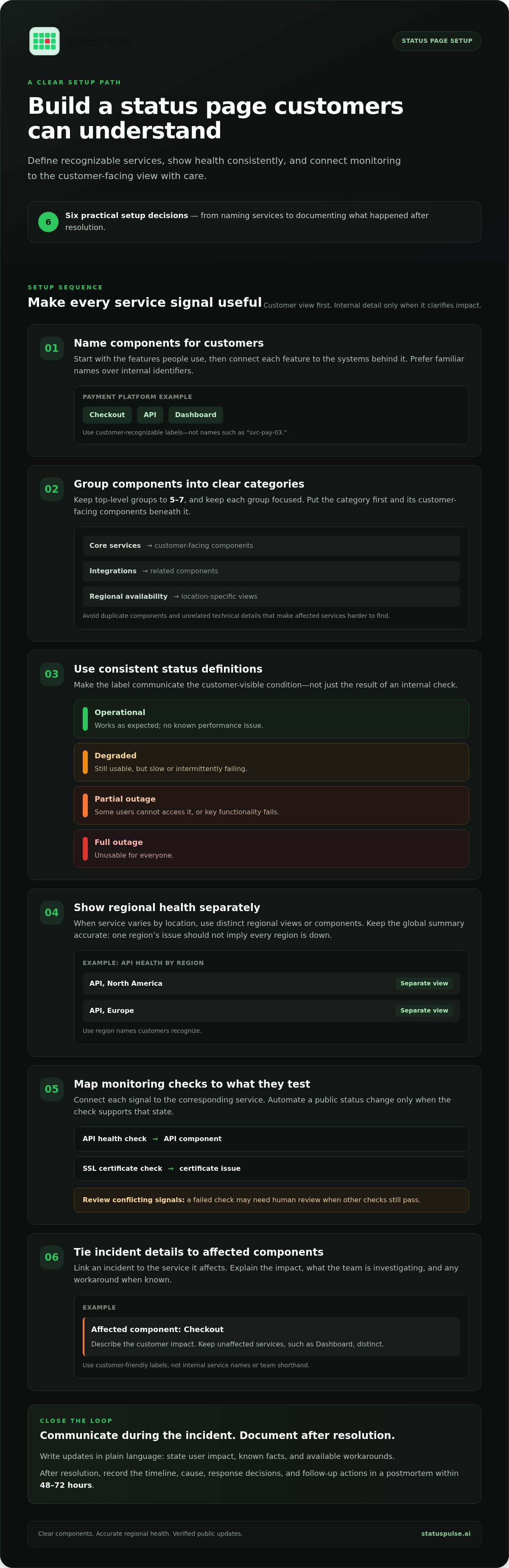
Write incident updates in plain language, stating user impact, known facts, and available workarounds. After resolution, document causes, response decisions, and follow-up actions in a postmortem within 48-72 hours.
- Map customer-facing services to components. Start with the features people use, then connect each one to the systems that support it. For a payment platform, list “Checkout,” “API,” and “Dashboard,” rather than internal labels such as “svc-pay-03.” Customers should recognize each component without knowing your architecture. Include infrastructure only when its condition helps explain a visible service impact.
- Group components into readable categories. Limit top-level groups to 5-7, such as “Core services,” “Integrations,” and “Regional availability.” Keep each group focused. A visitor looking for a login problem shouldn’t need to scan unrelated database or deployment components. Use a clear hierarchy: category first, customer-facing component beneath it. Avoid duplicate components that describe the same service from different technical angles.
- Apply consistent status definitions. Set “Operational” when a component works as expected and has no known performance issue. Use “Degraded” when it remains usable but is slow or intermittently failing. Mark “Partial outage” when some users can’t access it or key functionality fails. Use “Full outage” when it’s unusable for everyone. Consistent labels help customers distinguish an outage from reduced performance.
- Represent regional health separately. If a service behaves differently by location, show regions as distinct views or components. For example, “API, North America” and “API, Europe” make a regional outage clearer than a single global API indicator. Use region names customers recognize. Keep the global summary accurate: an issue affecting one region shouldn’t suggest every region is down.
- Connect monitoring to component states carefully. Map each check to the component it actually tests. An API health check can inform the API component, while an SSL certificate check can flag a certificate issue. Set monitoring to update status automatically only when the result supports that state. A failed check may need human review before it becomes a public outage, especially if other checks still pass.
- Keep incident details tied to affected components. If an incident affects “Checkout” but not “Dashboard,” link it to Checkout and explain the customer impact. When known, mention when the issue began, what the team is investigating, and any workaround. Use labels customers understand, not internal service names or team shorthand. Afterward, record the timeline, cause, and follow-up actions in the postmortem.
What is a status page (and how does it differ from an incident page)?
- Separate ongoing service health from incident reporting. A status page shows the current condition of customer-facing services and provides an update history. An incident page focuses on one disruption, its impact, investigation, and resolution. For example, a payment service status page may show an active incident, while the incident details explain failed transactions and workarounds. Use the status page as the overview, then attach each incident to the affected service.
- Choose a platform that fits your operating model. A DIY page gives your team control over its code, infrastructure, and publishing workflow, but also means maintaining the application and its dependencies. A hosted service moves page hosting and publishing mechanics to a provider. An integrated platform can connect monitoring, incident response, and public updates in one workflow. Compare options by asking who maintains the page, where its data resides, and how updates reach customers.
- Map monitoring signals to customer-facing services. Connect each check to the service it measures. For example, an API check can inform the API service, while an SSL certificate monitor can identify certificate problems. A database alert may need investigation before it affects a public component. Don’t send every internal alert directly to the status page. Define which signals trigger an incident, which team reviews them, and when someone publishes an external update.
- Connect alerts without surrendering editorial control. A monitoring integration can create an incident draft or notify an on-call responder. The responder can confirm the scope, select affected components, and communicate verified impact. Human review matters when one failed probe conflicts with successful checks elsewhere. Configure escalation separately from public publishing: an internal alert can prompt investigation without automatically announcing an outage. Record who owns each step from detection to customer update.
- Test the full path before relying on automation. Simulate a failed API check in a test environment, then follow the event through alerting, incident creation, and page display. Confirm the right service appears and the update uses customer-friendly language. Test recovery too: a passing monitor shouldn’t close an incident if the underlying issue remains. Review integration permissions, duplicate alerts, and failure behavior. Responders still need a way to publish updates if the status page or monitoring connection fails.
Accessibility, branding, and mobile usability
To create a status page on a custom domain, choose a subdomain such as status.example.com and configure its DNS to point to your hosting platform. Complete the platform’s domain and certificate setup, then test the page on desktop and mobile before sharing it with visitors.
- Make service information accessible without color. Follow the WCAG 2.1 accessibility standard, and pair each status color with a text label and recognizable icon. For example, show “Degraded” beside an amber indicator rather than relying on amber alone. Check keyboard navigation, focus visibility, headings, and contrast. A visitor using a screen reader should be able to identify the affected component and its current state.
- Set readable typography and responsive layouts. Use a 16 px base font size as a practical starting point, then test longer component names and incident updates on narrow screens. Stack component groups vertically on mobile instead of forcing horizontal scrolling. Keep update timestamps and subscription controls visible. A visitor checking an outage on a phone should find the current incident without zooming or hunting through menus.
- Apply restrained, recognizable branding. Use your organization’s name, logo, and a small set of brand colors, while keeping status labels visually distinct. If your design supports light and dark display settings, test both. Put the page title and service identity near the top. Subscribers should recognize the source of an update, even when they read an email notification outside your product.
- Assign an owner and limit publishing access. Name a team responsible for page structure, component definitions, and access reviews. Give incident responders permission to publish updates, while reserving configuration changes for designated administrators. For example, an on-call engineer can post an incident update without changing the page’s branding. Review access when responsibilities change, and document who can approve public messages.
- Match access controls to the audience. Keep a customer-facing status page public when broad service visibility is the goal. Put internal operational details behind authentication. Magic links can grant access without a shared password, but manage expiry and revocation. IP-range restrictions suit controlled networks, such as an office VPN, but can block remote responders. Test each restriction with the groups that need access.
Announcing planned maintenance
- Classify the update before publishing. Use a maintenance notice for scheduled work that may affect functionality. Keep it distinct from an active incident, which reports an unplanned disruption. For example, a database upgrade planned for a quiet period belongs under scheduled maintenance. If the work causes an unexpected outage, update the notice with the incident status. Clear categories help visitors understand whether a service change is expected or needs immediate attention.
- Describe the affected service and user impact. Name the component customers recognize, then explain what may change. “Checkout may be unavailable during payment configuration” is more useful than “backend maintenance.” State whether users should expect reduced functionality, failed requests, or a temporary interruption. Avoid internal change-ticket names. If only one region or feature is affected, identify it directly so customers don’t mistake limited work for a service-wide outage.
- Publish a precise maintenance window. Include the date, start time, end time, and time zone. For example, a schedule might say “June 15th, 02:00 to 04:00 UTC.” Say whether the full window is reserved or represents expected downtime. Keep the published times consistent across the status page, email, and product notice. If the schedule changes, update each channel rather than leaving conflicting versions visible.
- Explain the work without exposing internal shorthand. Give the reason customers need to know, such as a database upgrade or network configuration change. State what visitors should do, if anything, and how you’ll communicate progress. Avoid promising uninterrupted uptime when functionality may be affected. If the work finishes early, post a completion update and close the maintenance entry. If it runs longer, revise the window and explain why.
- Tell customers where to find future notices. Announce the status page through a customer email, an in-product status display, or your support channels. A Twitter integration can also share updates with customers who follow that channel. Include the page’s name and explain what visitors will find there, such as scheduled work and current service health. During setup, test each announcement route and confirm the public page shows the same maintenance details.
A status page may include a maintenance status for planned work that affects functionality. Use it to make clear that the work is planned, and focus the description on what customers may experience. Before publishing, check that the affected service, expected impact, timing, and any requested customer action are easy to find. Plain, consistent wording helps readers distinguish routine work from an unplanned disruption.
As work proceeds, keep the notice aligned with the service’s current condition. If the impact differs from what was expected, explain the change and clarify whether the work remains planned or an incident needs to be reported separately. When maintenance is complete, provide a brief closeout so readers know the work has ended. Review the notice for internal terminology or vague descriptions, and make sure customers can understand the expected effect without needing additional context.
Self-hosting versus status-page-as-a-service
| Decision area | Self-hosting | Hosted service |
|---|---|---|
| Operational control | Your team controls deployment and infrastructure. | The provider operates the status-page application. |
| Ongoing work | Your team maintains the application and its dependencies. | Your team manages page content and publishing. |
| Key dependency | Your hosting environment and recovery process. | The provider’s availability and publishing workflow. |
- Choose self-hosting when control outweighs maintenance. Decide how to set up a status page by identifying who will own its software lifecycle. Your team controls deployment, storage, and configuration, which can suit organizations with established platform operations. Assign responsibility for patching, backups, and recovery. Keep the page’s hosting dependency separate from the production systems it reports on. Otherwise, one infrastructure failure could take both offline.
- Choose a hosted service to reduce application upkeep. A provider operates the page application, while your team manages its content and publishing workflow. This avoids maintaining another web application, but makes publishing dependent on an external service. Document how responders will access the account and retrieve incident records. Before choosing this trade-off, consider whether your organization needs control over deployment or data storage.
- Compare the work across the full lifecycle. During setup, list who handles software updates, access reviews, data retention, page changes, and recovery. A team with deployment automation may be comfortable owning these tasks. A team with limited capacity for application maintenance may prefer a hosted model. Don’t compare only the initial setup effort. Consider whether your team can sustain its responsibilities during routine operations and service disruptions.
- Test the failure mode that matters to your team. For self-hosting, simulate the loss of the primary hosting environment and confirm the page can be restored independently. For a hosted service, rehearse how responders would publish an update if normal single sign-on or network access failed. In both cases, record the fallback procedure and responsible role. This exercise reveals dependencies a feature comparison alone won’t uncover.
- Record the decision and review it as operations change. Note why your team selected its hosting model, who owns its risks, and what would trigger reconsideration. A growing internal platform team may later take on self-hosting; a team facing rising maintenance demands may move to a provider. If a hosted approach fits your requirements, compare hosted status page options against your operational needs.
StatusPulse: Public Status Pages
StatusPulse combines Public Status Pages with Uptime Monitoring, SSL Certificate Monitoring, and API Monitoring. Its AI Incident Management helps technical teams draft incident summaries and describe outage impact, connecting incident communication with service monitoring.
For teams with data-residency requirements, StatusPulse offers a choice of EU or US hosting. Probes, logs, and status pages remain in the selected region. This can suit organizations looking to bring monitoring and public updates into one platform while choosing where their data lives. Teams already satisfied with separate monitoring and status-page tools may prefer to keep their current workflow.
Visit StatusPulse’s public status page platform to explore whether it fits your setup.
Make clear updates part of incident response
The next step in learning how to set up a status page is to make publishing part of incident response, not an afterthought. Assign an owner, define who can approve public updates, and rehearse a sample notification before customers need it. Add the publishing workflow to the on-call runbook so responders know what to do when service conditions change.
StatusPulse offers Public Status Pages alongside Uptime Monitoring and SSL Certificate Monitoring. These tools help teams connect service checks with customer-facing updates. They may suit teams looking to bring these functions together; teams with an established workflow may prefer to keep their current setup.
Before launch, test the full process with the people responsible for incidents. Confirm they can access the page, write a useful update, and communicate through the channels customers already use. Then decide whether a hosted status page fits your operating model.
Contact StatusPulse to discuss your status page. A clear publishing process is a practical step toward better customer communication.
Frequently Asked Questions
What is a status page and what information should it include?
A status page should give customers enough context to interpret each update. Show the affected service, the time of the latest change, and whether the update describes a current condition or a resolved event. Add a stable incident reference so support teams can find the same record. If one service remains unaffected, say so; this helps readers understand the incident’s scope without guessing.
How to set up a status page step by step
Set up a status page by starting with one critical customer journey, such as account access or checkout. Identify the team that owns its service health, then agree on what evidence warrants a public update. Run a practice incident before launch and check whether responders can follow the publishing process under pressure. Use feedback from support staff to refine terminology and decide when the page is ready for customers.
How to connect monitoring and incident alerts to a status page
Connect alerts using clear event identifiers and rules for duplicate signals. For example, several failing checks for the same API incident shouldn’t create separate public records. Define how the integration handles stale alerts, recovery events, and conflicting probe results. Test these cases with sample events, then confirm responders can tell which monitoring signal created each incident. This makes integration issues easier to troubleshoot when an alert behaves unexpectedly.
How to make a status page accessible and mobile friendly
Make dynamic updates understandable to assistive technology by announcing changed incident text through an appropriate live region. Avoid automatically refreshing the whole page, which can interrupt someone reading an update. Use semantic table headers if service data appears in a table, and ensure error messages explain how to correct a failed subscription form. Test these behaviors with a screen reader and a narrow mobile viewport.
How to secure a public status page and prevent misuse
Secure the publishing path separately from the public, read-only page. Protect administrator accounts with multi-factor authentication, limit credentials to systems that need them, and retain an audit trail of publishing changes. If the page accepts subscriber registrations, protect the form against automated submissions and validate addresses before sending notifications. Keep secrets, internal hostnames, and raw stack traces out of public incident text.
What uptime metrics and service components should a status page display?
Display an uptime percentage with its measurement window, calculation method, and any maintenance exclusions. These details help customers compare the figure with their own experience. For example, clarify whether the metric reflects checks from one monitoring location or multiple locations. Pair the percentage with the customer-facing service it measures, and explain whether partial failures count as downtime. Without that context, even a precise-looking metric can mislead.


